
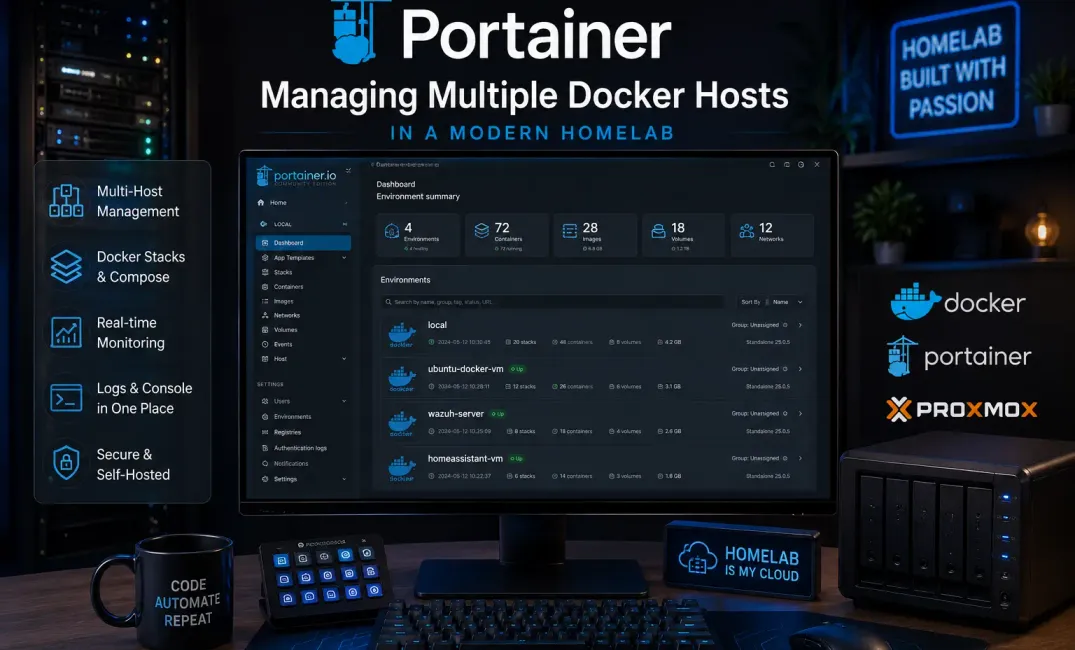
Introduction
My homelab has always been the playground outside of work to dive into the latest tech stacks and tools available on the internet and conduct proof-of-concepts (POCs) to showcase the feasibility of deploying it in corporate infrastructure.
It has grown from one docker server into multiple virtual machines spread across different proxmox hosts. Managing all the different machines with CLI on each virtual machine via SSH has become painful to manage.
docker ps
docker logs
docker compose up
docker compose down
Considering the number of containers I'm managing in my Homelab such as Home Assistant, Wazuh, CertWarden, AdGuard Home, etc, it's a chore each time I have to manage the update of the containers to remediate CVEs that were announced.
That's where I found Portainer.
What is Portainer?
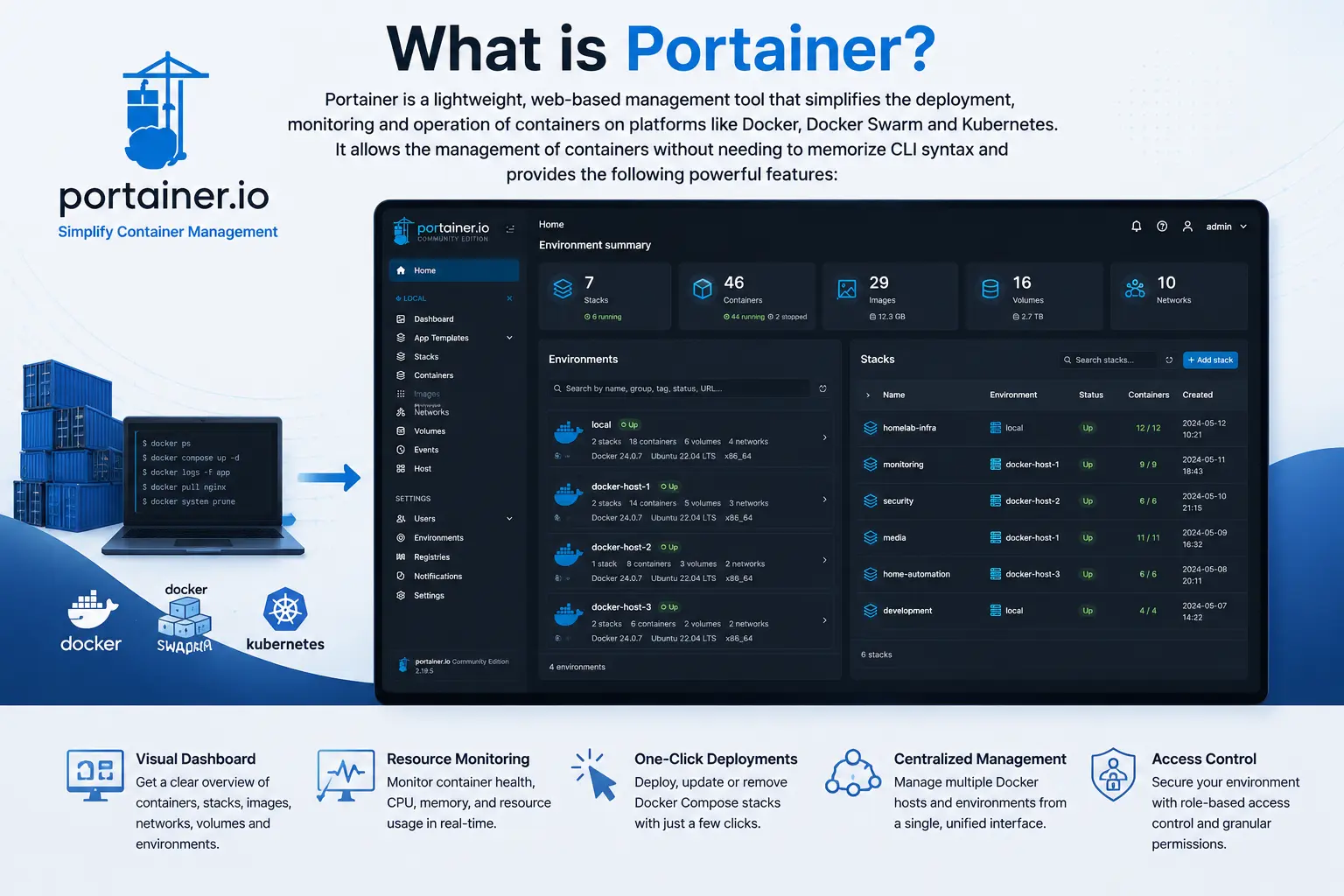
Portainer is a lightweight, web-based management platform that provides a modern graphical interface that simplifies the deployment, monitoring and operation of containers on platforms like Docker, Docker Swarm and Kubernetes. Instead of relying solely on the command line, Portainer allows you to manage your entire container infrastructure through a centralized dashboard, making day-to-day operations significantly faster and more intuitive.
Some of the features that I use most frequently include:
- Visual Dashboard – Get an instant overview of all Docker environments, running containers, images, networks, and volumes from a single interface.
- Resource Monitoring – Monitor container health and quickly identify running, stopped, or unhealthy services without logging into individual servers.
- One-Click Stack Deployments – Deploy, update, or remove Docker Compose stacks directly from the web interface in just a few clicks.
- Centralized Multi-Host Management – Manage multiple Docker hosts and virtual machines from a single Portainer instance using the Portainer Agent.
- Role-Based Access Control (RBAC) – Securely delegate access to different users or teams with granular permissions, making it suitable for both homelabs and enterprise environments.
For me, Portainer doesn't replace the command line entirely, but it complements it. I still use the command line for scripting, troubleshooting and automation. However, Portainer has significantly simplified the operational side of managing my homelab. Tasks that previously require multiple connected SSH sessions and several repetitive commands can now be completed from a single dashboards in just a few clicks.
Portainer Architecture
One of the reasons I chose Portainer is its simple and scalable architecture. Rather than installing a full management platform on every server, Portainer uses a lightweight server-client model that can manage multiple Docker, Kubernetes environments from a single web interface.
In my homelab, i run a dedicated Ubuntu virtual machine in my Proxmox cluster to host the Portainer Server. This server provides the web interface, stores configuration data, manages user authentication, and communicates with all my container hosts.
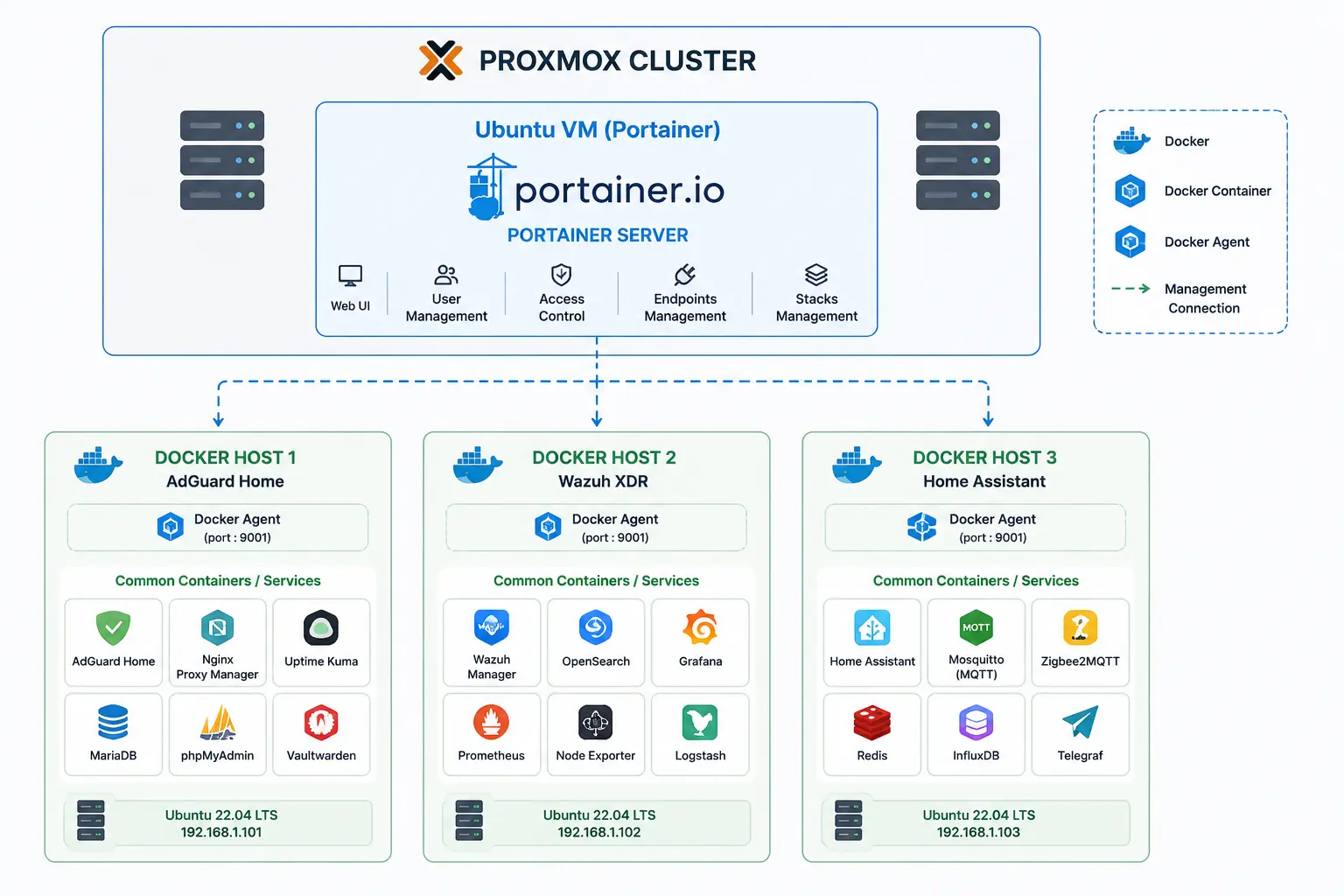
Each docker virtual machine runs a lightweight Portainer Edge Agent, which establishes a secure management channel back to the Portainer Server. This allows me to centrally manage containers, docker compose stacks, images, volumes and networks across all of my hosts without needing to SSH into each respective servers.
This design allows me to scale my homelab simply by deploying another Docker host and installing the Portainer Edge Agent. Within minutes, I can manage the new host in my Portainer dashboard alongside my existing infrastructure.
One feature I particularly appreciate is that Portainer treats each environment (docker host) as independent. This make it easy for me to organize and isolate workloads based on their purpose and hosts while managing everything from a single web interface. For example, I keep my home automation services isolated from my development stack. This simplifies maintenance, upgrades and troubleshooting.
Features I use daily
Although Portainer offers a wide range of capabilities, there are a handful of features that have become part of my daily workflow. These are the features that have saved me the most time when managing multiple docker hosts and a dozens of self-hosted applications.
Stack Deployment
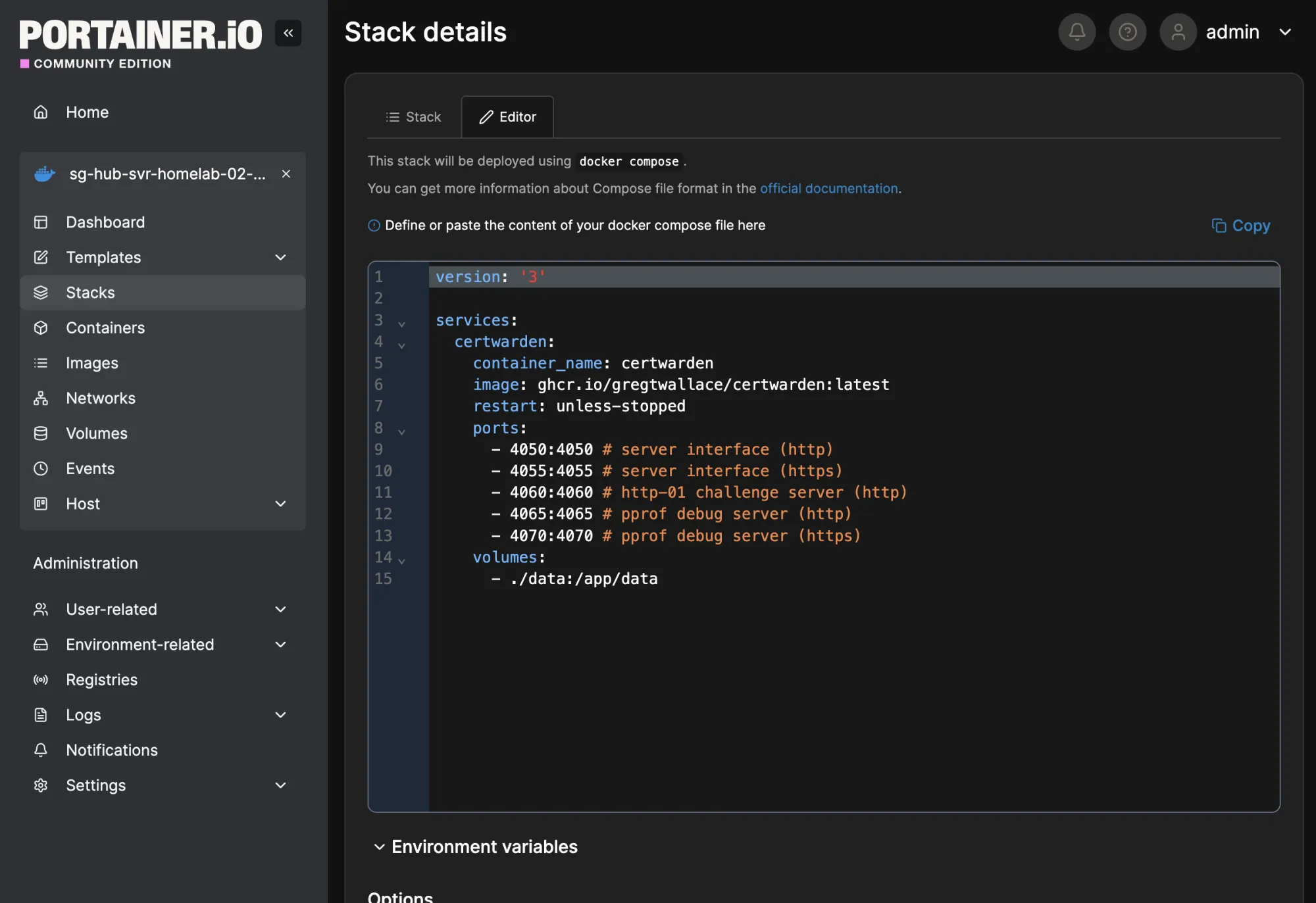
There are many application in my homelab that is deployed using Docker Compose. An example would be CertWarden which provides a docker-compose.yml in it's GitHub repository. Instead of copying the docker-compose.yml file to each host and running the commands to run the containers, I uses the Portainer's Stacks feature to deploy and manage applications directly from the web interface.
One-click updates
Keeping containers up-to-date used to involve multiple SSH sessions and several commands.
With Portainer, updating a service is as simple as selecting the stack and clicking Pull and Redeploy to download the latest images, recreate the containers and preserves my existing configuration.
For routine updates, this saves a significant amount of time and reduces the chance of making mistakes when manually entering commands.
Container Logs
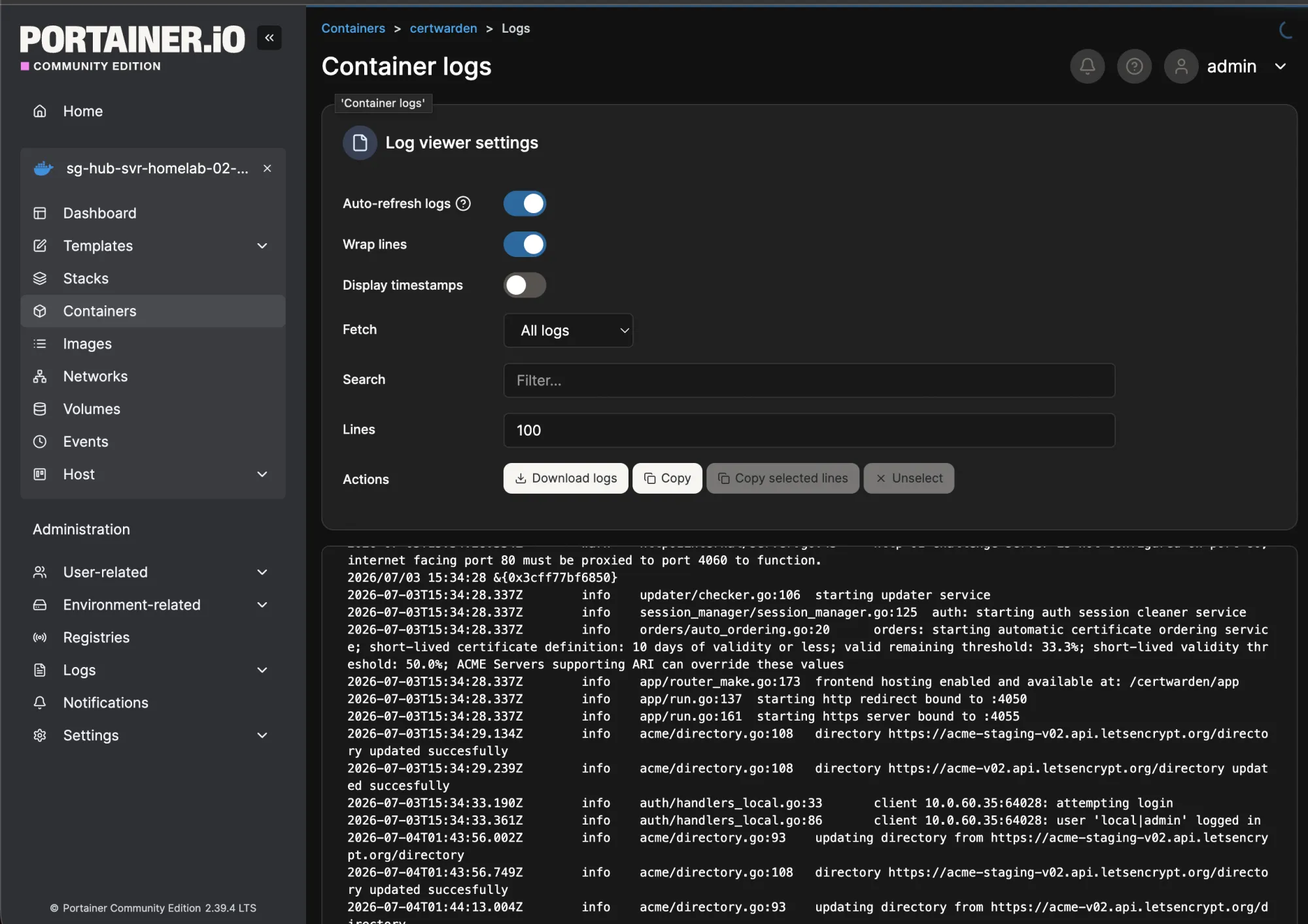
Instead of opening an SSH session then running docker logs, I can access logs directly from the Portainer web interface. This makes troubleshooting much faster.
Console Access
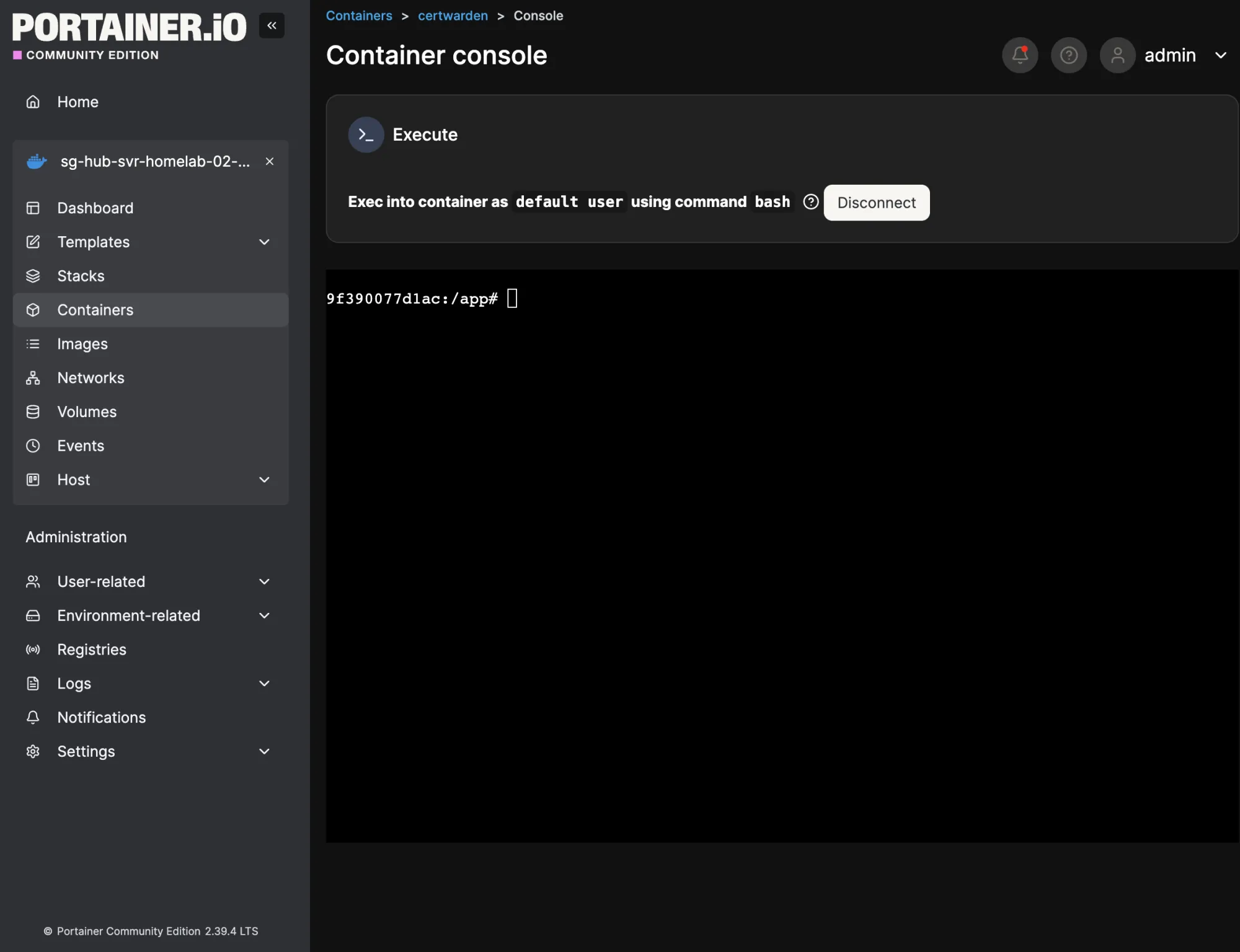
Portainer's built-in Console allows us to open a shell directly from the browser without establishing a separate SSH connection to the host. This make it incredibly convenient for quick diagnostics and simple maintenance tasks.
Resource Monitoring
Portainer provides a clear overview of the health of my Docker environments.
From a single dashboard, I can quickly identify:
- Running and stopped containers
- CPU and memory usage
- Images, volumes, and networks
- Container status and health checks
- Available Docker hosts
Having this information centralized helps me spot issues before they become problems and gives me confidence that my services are operating normally.
Environment Management
One of my favourite features is the ability to manage multiple Docker environments from a single dashboard.
My homelab consists of several dedicated Docker hosts, each serving a different purpose:
- Infrastructure services
- Security platform
- Home automation
- Development workloads
Instead of logging into each virtual machine individually, Portainer lets me switch between environments with a single click while maintaining a consistent management experience.
As my homelab continues to grow, onboarding a new Docker host simply involves installing the Portainer Agent and registering it with the Portainer Server.
Role-based Access Control (RBAC)
Although I’m currently the primary administrator of my homelab, I appreciate that Portainer includes enterprise-grade Role-Based Access Control (RBAC).
Users can be assigned different permissions based on environments, endpoints, or administrative responsibilities. This makes Portainer suitable not only for personal homelabs but also for small teams and enterprise environments where multiple administrators need controlled access.
It’s reassuring to know that if I ever expand my homelab or collaborate with others, I already have a secure and scalable access management model in place.
Things Portainer doesn't Replace
As much as I enjoy using Portainer, it’s important to understand that Portainer is not a replacement for Docker itself.
It provides an excellent management interface that simplifies many day-to-day administrative tasks, but having Portainer doesn’t eliminate the need to understand Docker fundamentals. A solid understanding of containers, images, networks, volumes, and Docker Compose is still essential when building and operating a reliable self-hosted environment.
For my own homelab, I continue to rely on the Docker CLI for tasks that require greater flexibility or lower-level access.
Troubleshooting
When investigating complex issues, the command line often provides more detailed information than a graphical interface. Commands such as docker inspect, docker exec, docker network inspect, and docker events are invaluable when diagnosing networking issues, container failures, or unexpected application behaviour.
Advanced Networking
Portainer makes it easy to create standard Docker networks, but more advanced networking configurations are still best handled through the CLI.
Examples include:
- Creating custom bridge networks
- Configuring macvlan or ipvlan networks
- Connecting containers across multiple Docker hosts
- Fine-tuning network drivers and DNS settings
These scenarios require a deeper understanding of Docker networking concepts beyond what a graphical interface can expose.
Custom Scripts
Many of my maintenance tasks are automated using Bash scripts, scheduled cron jobs, or Ansible playbooks.
Examples include:
- Cleaning up unused Docker images and volumes
- Performing health checks
- Restarting services automatically
- Managing certificates
- Performing scheduled maintenance
These workflows are far easier to automate using the Docker CLI than through a web interface.
Backups
Protecting a homelab requires more than simply exporting Docker Compose files.
Regular backups should include:
- Persistent Docker volumes
- Application configuration
- Databases
- Environment files
- Docker Compose definitions
While Portainer helps manage applications, I still rely on CLI tools and backup scripts to ensure my data can be restored quickly in the event of hardware failure or accidental deletion.
Automation
One of Docker’s greatest strengths is its ability to integrate into automated workflows.
Whether it’s provisioning new infrastructure, updating containers, or performing scheduled maintenance, the Docker CLI integrates seamlessly with automation tools such as:
- Ansible
- Terraform
- GitHub Actions
- Jenkins
- Bash scripting
These workflows are typically built around command-line tools rather than graphical interfaces.
Git-Based Deployments
I treat my Docker Compose files as infrastructure-as-code and store them in Git repositories.
Version control provides several advantages:
- Track configuration changes
- Review changes before deployment
- Roll back to previous versions
- Collaborate more effectively
- Maintain a complete audit trail
Although Portainer supports Git-based stack deployments, I still use Git as the source of truth for my infrastructure. This allows me to combine the convenience of Portainer with the reliability and traceability of modern DevOps practices.
Choose the right tools for the right job
For me, the ideal workflow isn’t Portainer or Docker CLI—it’s Portainer and Docker CLI.
Portainer excels at everyday operational tasks such as monitoring containers, managing stacks, reviewing logs, and performing routine updates through an intuitive web interface. The Docker CLI, on the other hand, remains indispensable for automation, scripting, advanced troubleshooting, and infrastructure management.
Understanding both tools allows you to choose the right one for the task at hand, making your homelab easier to manage without sacrificing the flexibility and power that Docker provides.
Security Considerations
One of the common misconceptions is that a homelab doesn't require the same level of security as a production environment. While the risks may be different, many self-hosted services still contain sensitive information such as personal files, passwords, infrastructure credentials, etc.
Since Portainer is the central management platform for my containerized workloads, securing it should be a priority rather than an afterthought.
Here are the security practices I implemented when deploying Portainer in my homelab.
Enable HTTPS with TLS
Never expose the Portainer web interface over unencrypted HTTP.
Using HTTPS ensures that all communication between your browser and the Portainer Server is encrypted, protecting login credentials, session cookies, and management traffic from interception.
Whether you use self-signed certificates or certificates issued by Let’s Encrypt, enabling TLS should be considered a minimum security requirement.
Place Portainer Behind a Reverse Proxy
Rather than exposing Portainer directly to the Internet, I recommend placing it behind a reverse proxy such as:
- Nginx Proxy Manager
- Traefik
- Caddy
- NGINX
A reverse proxy provides several benefits:
- Centralized TLS certificate management
- Custom domain names
- HTTP to HTTPS redirection
- Security headers
- Access logging
- Integration with authentication providers
This also creates a single entry point for your self-hosted services while reducing the number of applications directly exposed to the network.
Use Strong Authentication
Portainer is effectively the control plane for your Docker infrastructure. Anyone with administrative access can deploy containers, modify applications, view secrets, and execute commands inside running containers.
Protect your Portainer instance by:
- Using a strong, unique administrator password
- Disabling unused accounts
- Following the principle of least privilege
- Regularly reviewing user accounts and permissions
If Portainer is accessible outside your trusted network, additional authentication layers such as MFA thought OAUTH authentication should also be considered.
Implement Role-Based Access Control (RBAC)
Avoid using the built-in administrator account for every task.
Portainer includes Role-Based Access Control (RBAC), allowing permissions to be assigned based on responsibilities.
For example, you can:
- Grant read-only access for monitoring
- Restrict users to specific Docker environments
- Separate administrators from operators
- Limit deployment privileges
Following the principle of least privilege reduces the impact of accidental changes and helps protect critical services.
Never Expose the Docker Socket Publicly
One of the most important security recommendations is never expose the Docker daemon directly to the Internet.
The Docker socket (/var/run/docker.sock) effectively provides root-level control over the host. Anyone who gains access to it can start containers, mount host directories, execute privileged workloads, or compromise the underlying server.
If Portainer needs to manage remote Docker hosts, exposing the Docker API should not be your first choice.
Use the Portainer Edge Agent for Remote Hosts
For remote Docker environments, I strongly recommend deploying the Portainer Edge Agent instead of exposing the Docker API.
The Portainer Agent provides a more secure and scalable communication model by acting as an intermediary between the Docker host and the Portainer Server.
Some advantages include:
- Simplified multi-host management
- Reduced exposure of the Docker daemon
- Easier onboarding of new Docker hosts
- Better scalability as your homelab grows
- Support for clustered and distributed environments
This is the architecture I use throughout my homelab, allowing a single Portainer Server to securely manage multiple Docker hosts running across different virtual machines.
My Security Approach
Although my homelab isn’t a production environment, I try to apply many of the same security principles that I would in an enterprise deployment.
My Portainer deployment follows a few simple rules:
- ✅ HTTPS enabled with TLS
- ✅ Reverse proxy with a custom domain
- ✅ Portainer Agent for all remote Docker hosts
- ✅ Docker socket never exposed publicly
- ✅ Strong authentication and least-privilege access
- ✅ Regular updates for both Portainer and Docker
These practices require very little additional effort but significantly reduce the attack surface of your container management platform. Whether you’re running five containers or fifty, treating Portainer as critical infrastructure will help keep your homelab secure as it continues to grow.
Tips I've Learned
One of the tips I have learnt throughout my career is to name every stack consistently. This will allow you to manage and identify the resource easily.
Instead of a generic name for a stack like:
docker-composeConsider using identifiable name. For me, I prefer to name it like this:
<physical location bigram>-<site name trigram>-<app name>-<index>

Eg.

SG-AWS-Wordpress-01
SG-GCP-UptimeKuma-01
Would I Recommend Portainer?
After several months of managing the containers across multiple docker hosts, Portainer has become one of the first applications to deploy in any new homelab.
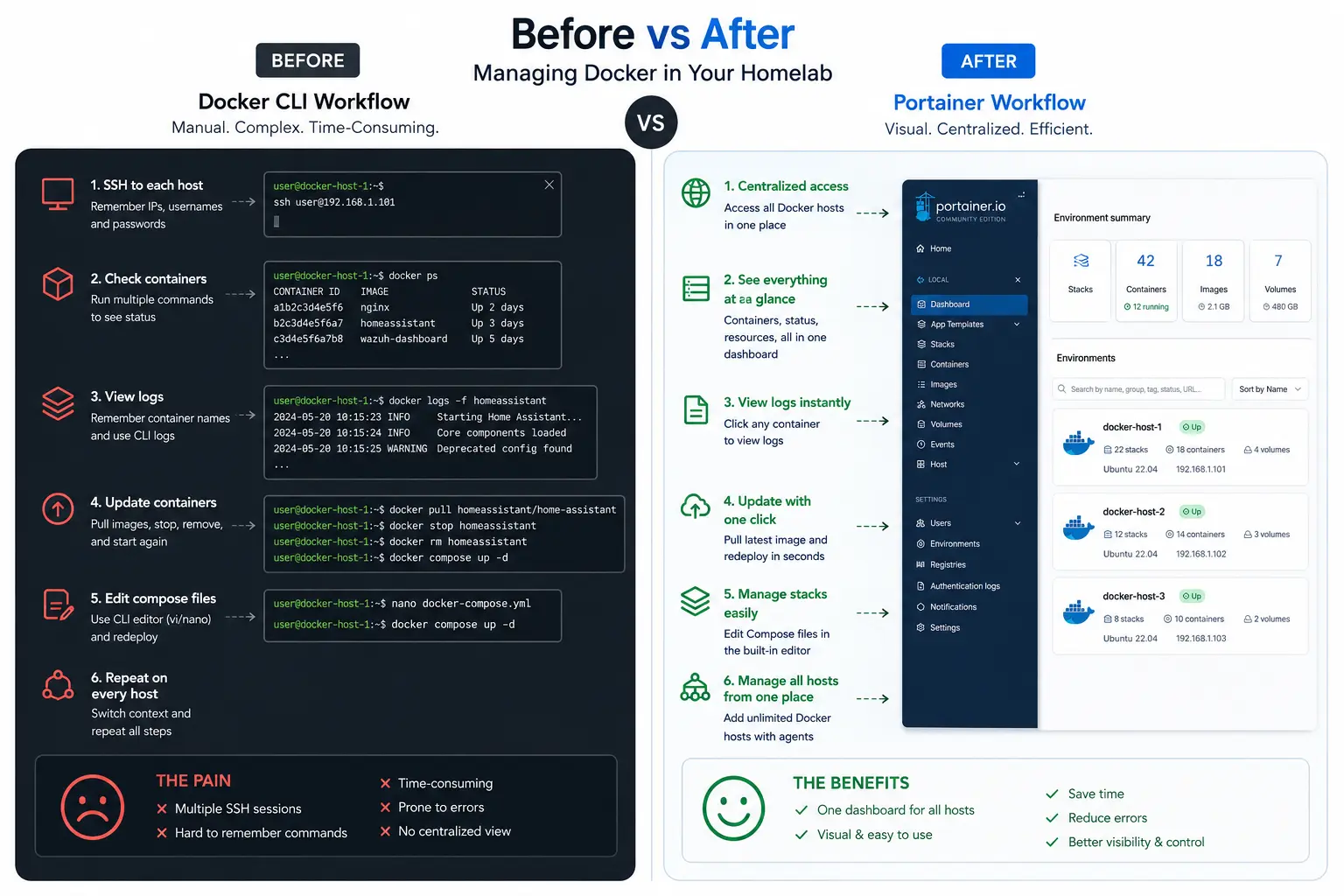
It reduces repetitive CLI work and provides a consolidated view of my infrastructure, making routine maintenance significantly faster.